
Draw and paint
Choose from nine brush styles and adjust the size and opacity of your strokes.
 OpenPaint
A familiar paint app for Linux and macOS.
Draw, add text and make quick image edits.
Free and open source. No account needed.
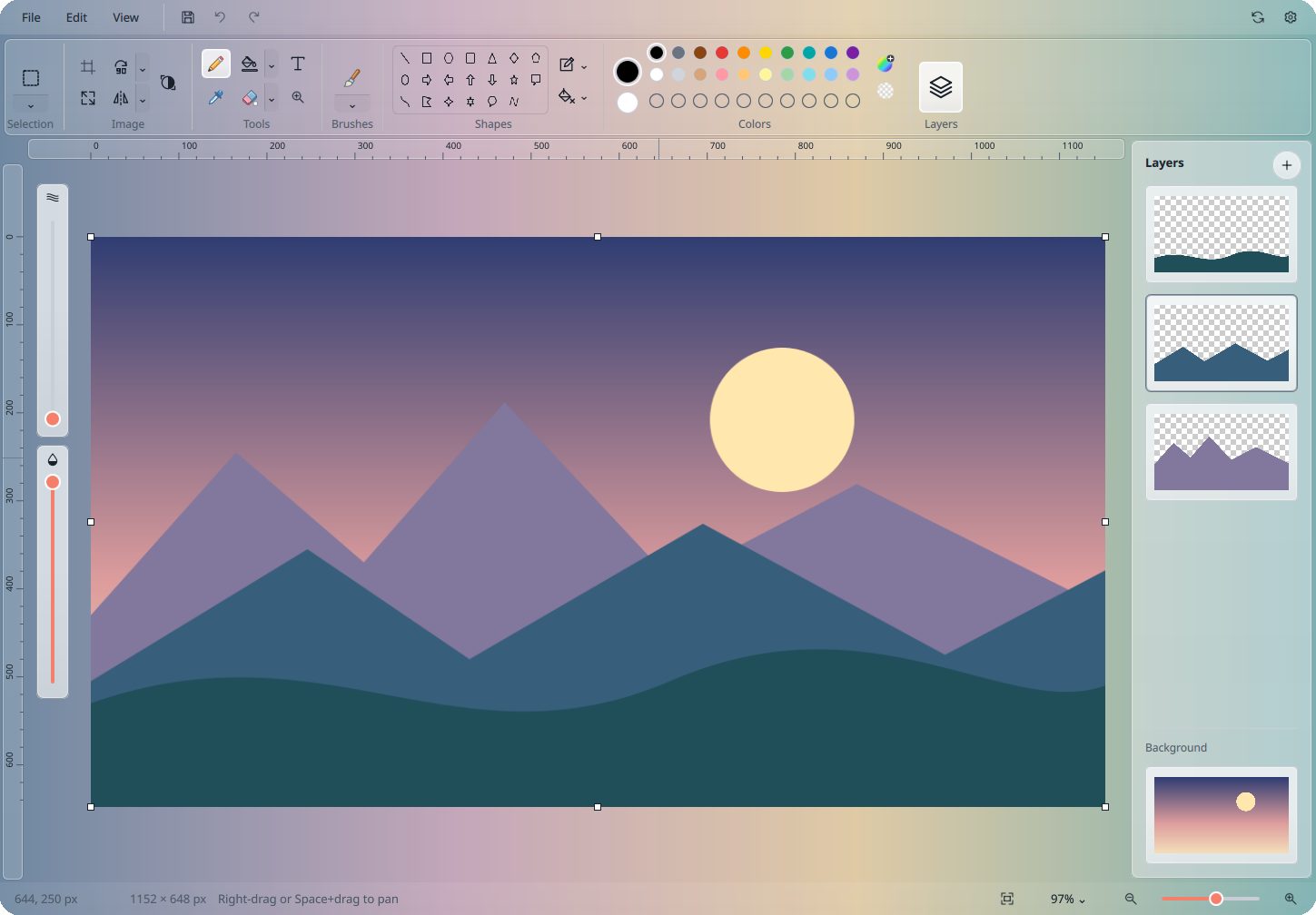
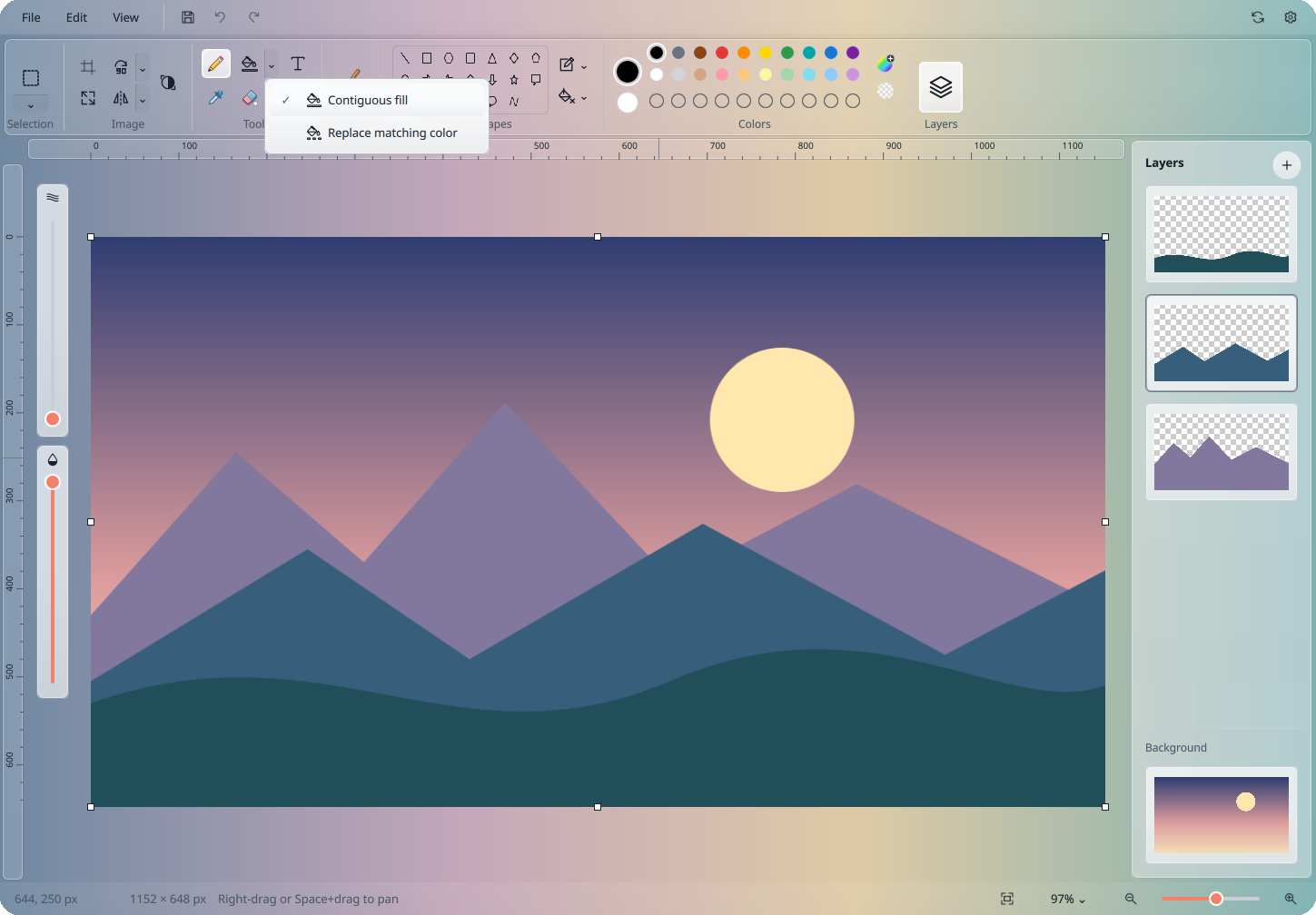
Use a pencil or brush, fill connected or matching colors, add shapes and text, or select part of an image. Pixel rulers, optional alignment guides and region zoom help place your edits.
Choose from nine brush styles and adjust the size and opacity of your strokes.

Mix fonts and styles within a caption, or draw lines, splines, arrows and other shapes.

Use rectangle, free-form or exact-color wand selection to copy, cut and move part of an image.

Reorder, hide, duplicate and merge layers. Save an editable project, with undo and redo along the way.
Choose a theme in Settings, or follow your system theme.
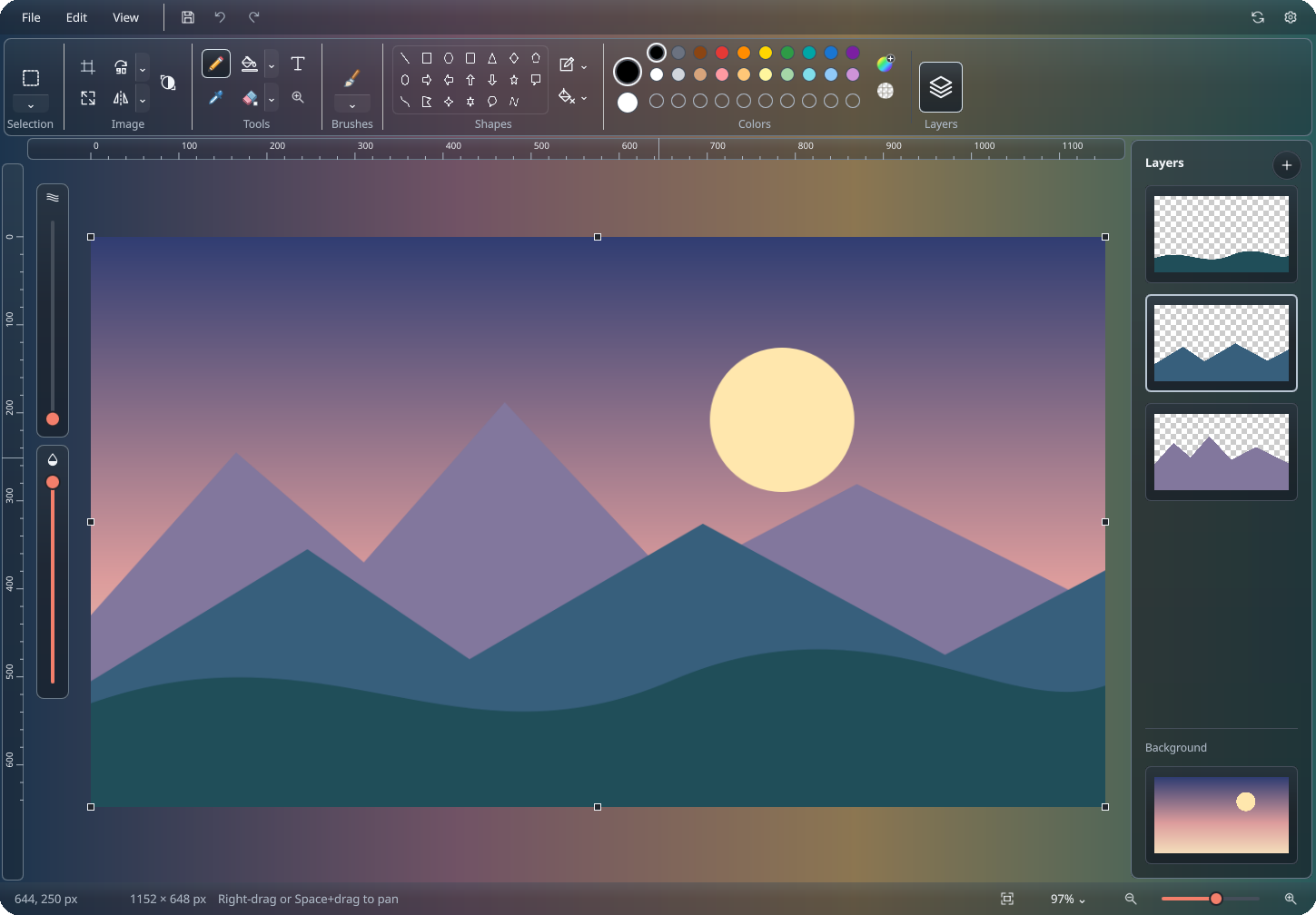
Captured from the OpenPaint 2.1.0 release UI with glass enabled at 40% surface opacity, over a staged original gradient backdrop. These isolated UI captures use a staged backdrop; desktop blur requires a supported compositor.
From a thin pencil line to a broad marker stroke.
Change the brush style, size and opacity as you draw.
Illustrations of stroke size; actual brush textures vary by style.
Choose from the palette, pick a color from your image, or enter a precise HEX, RGB or HSV value.
Use light or dark mode, and adjust the app’s glass appearance in Settings.
See all current features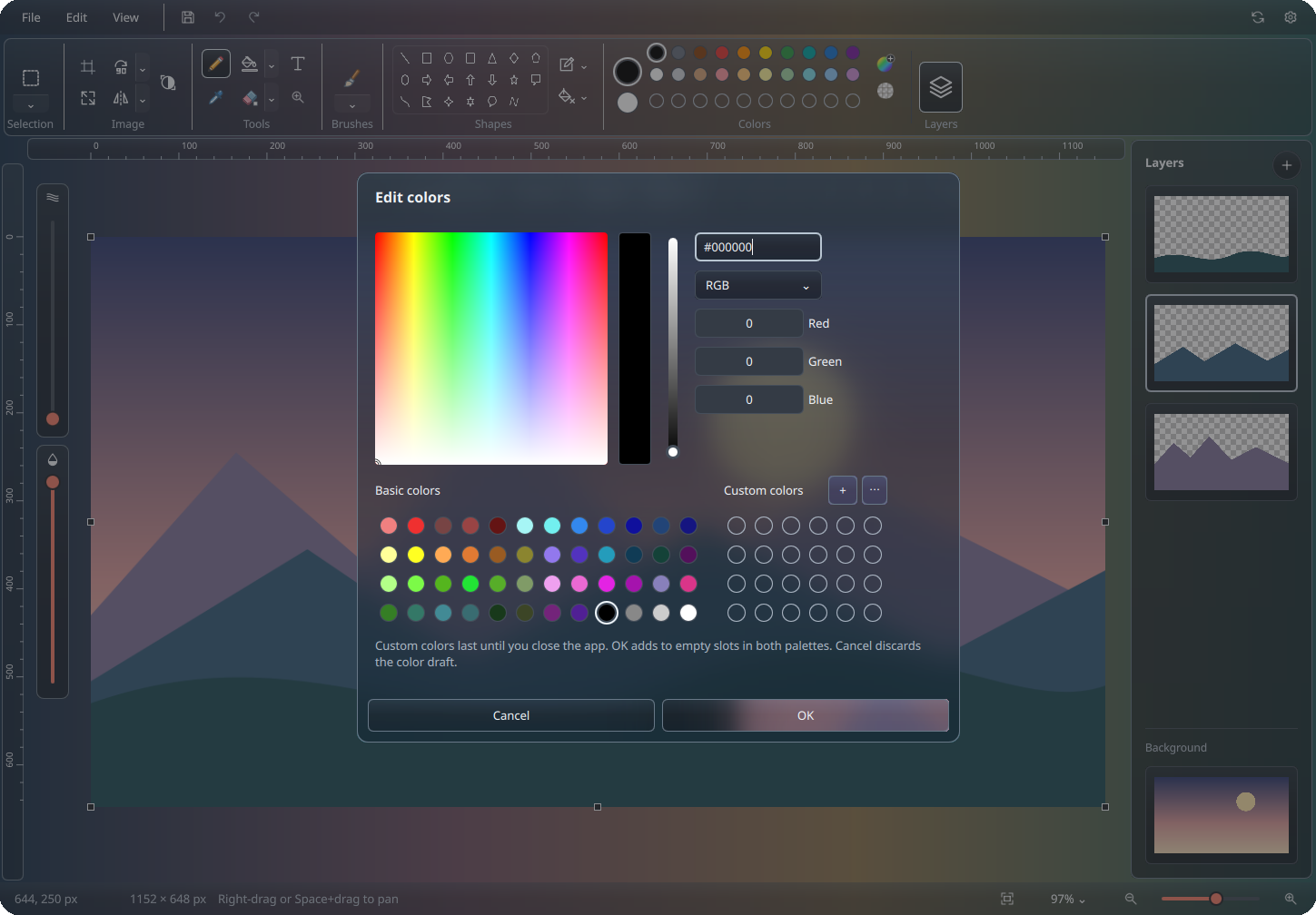
Remove the edges of an image, change its dimensions, or flip and rotate it. Use the zoom slider and right-drag to pan while working on small details.
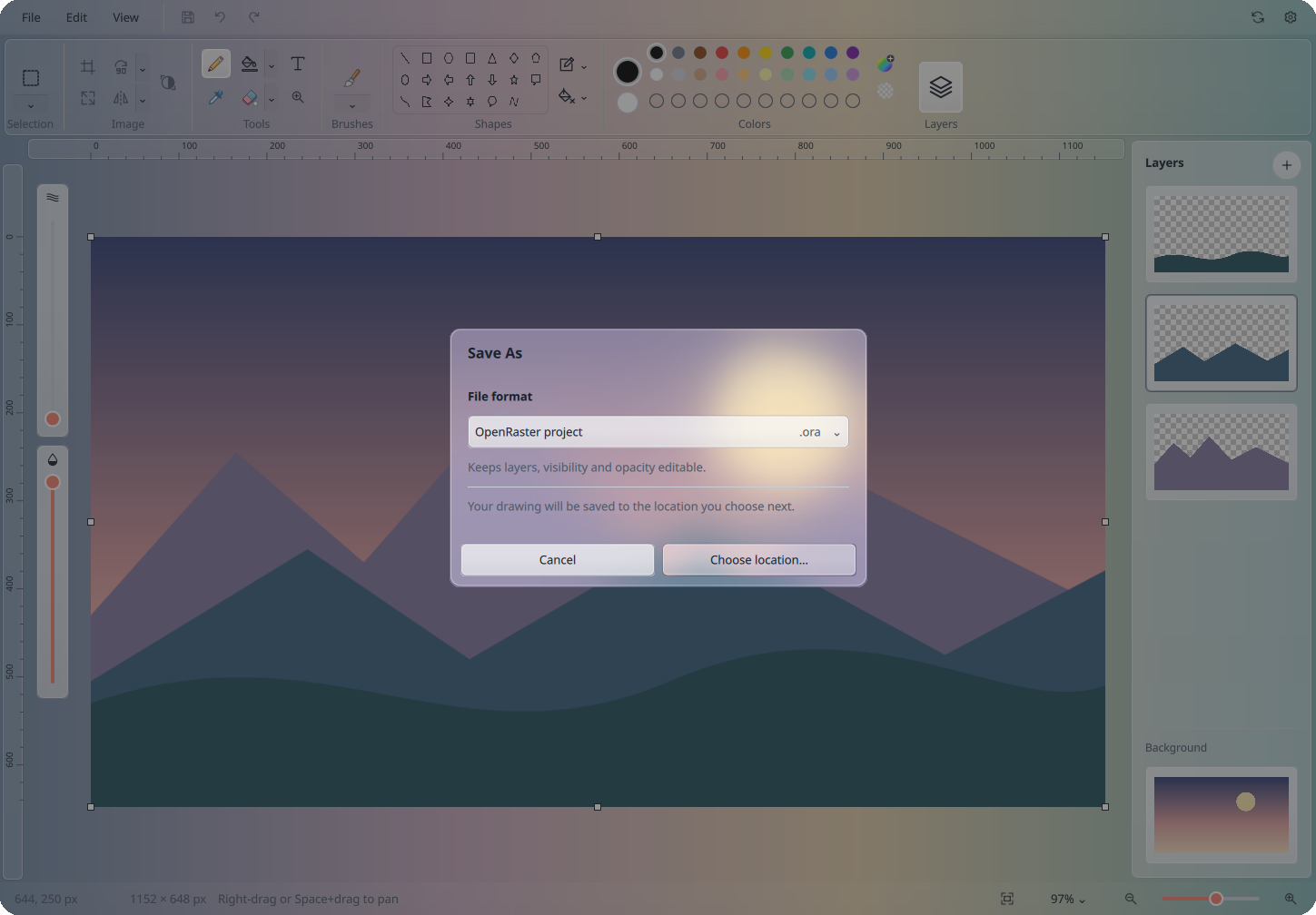
Open and export PNG, JPEG, BMP and WebP. Save As also offers monochrome 1-bit BMP copies. Keep editable layers in OpenRaster (.ora), or save a flat drawing as PNG.
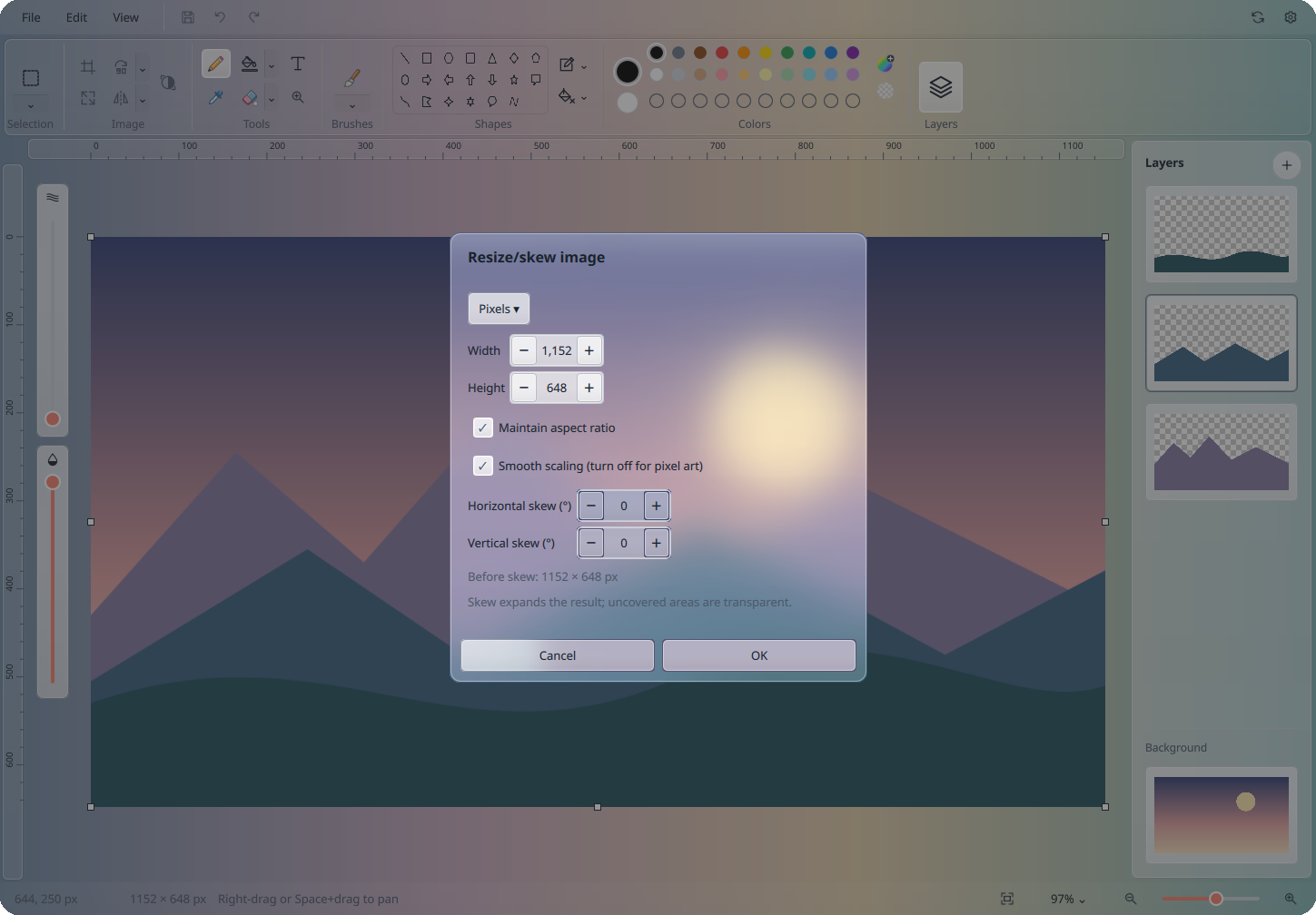
Save an editable project or export an image copy, including monochrome BMP. Fill one connected area or replace matching colors across the active layer.
Free downloads for Linux x86_64 and Apple silicon Macs.
Packages are hosted on GitHub Releases. The Flatpak bundle is not a Flathub listing.
Check the installation guide for compatibility, checksums and update instructions.
Yes. OpenPaint is licensed under GPL-3.0-or-later. The source code is on GitHub.
Editing works offline, with no account or telemetry. Downloads, initial package setup and automatic release checks in native packages need an internet connection. Flatpak opens release information in your browser only.
Yes—add, reorder, hide, duplicate and merge layers, then save an editable OpenRaster project. AI tools, crash recovery and automatic update installation are not included.
No. OpenPaint is an independent project. It is not affiliated with Microsoft.
Open an issue on GitHub and include your operating system, desktop environment and steps to reproduce the problem. For code contributions, see the contribution guide.